Portal URL
portal.azure.com
Use the Microsoft Azure Portal, not a copied login link from chat.
Student Portal walkthrough
Use the Azure Portal to inspect assigned hackathon resources, confirm where Azure is used, and avoid accidental cost or secret exposure. Build in mock mode first; use Portal for verification, troubleshooting evidence, and final demo screenshots.
Portal URL
Use the Microsoft Azure Portal, not a copied login link from chat.
Demo resource group
The reference stack for the Career CV deploy walkthrough.
Main AI resource
Azure OpenAI resource with the gpt-4o-mini deployment.
Student account model
Reader for the demo resource group plus service-specific use rights.
A demo student account was prepared for this guide with limited access to the reference stack. If first sign-in asks for MFA registration, finish it before the event or ask operations to reset the account.
Portal access is for inspection and demo evidence, not unsupervised cloud administration.
Use only the account assigned by tutors or operations.
Complete password change or MFA registration before the build sprint starts.
Never show API keys, passwords, tenant IDs, object IDs, or subscription IDs on screen.
If the resource group is empty, stop and ask a tutor instead of creating new resources.
These redacted training screenshots show the exact Portal areas teams should recognize. Each screen has a specific purpose: prove the resource exists, explain how the demo is hosted, or diagnose a problem without exposing secrets.
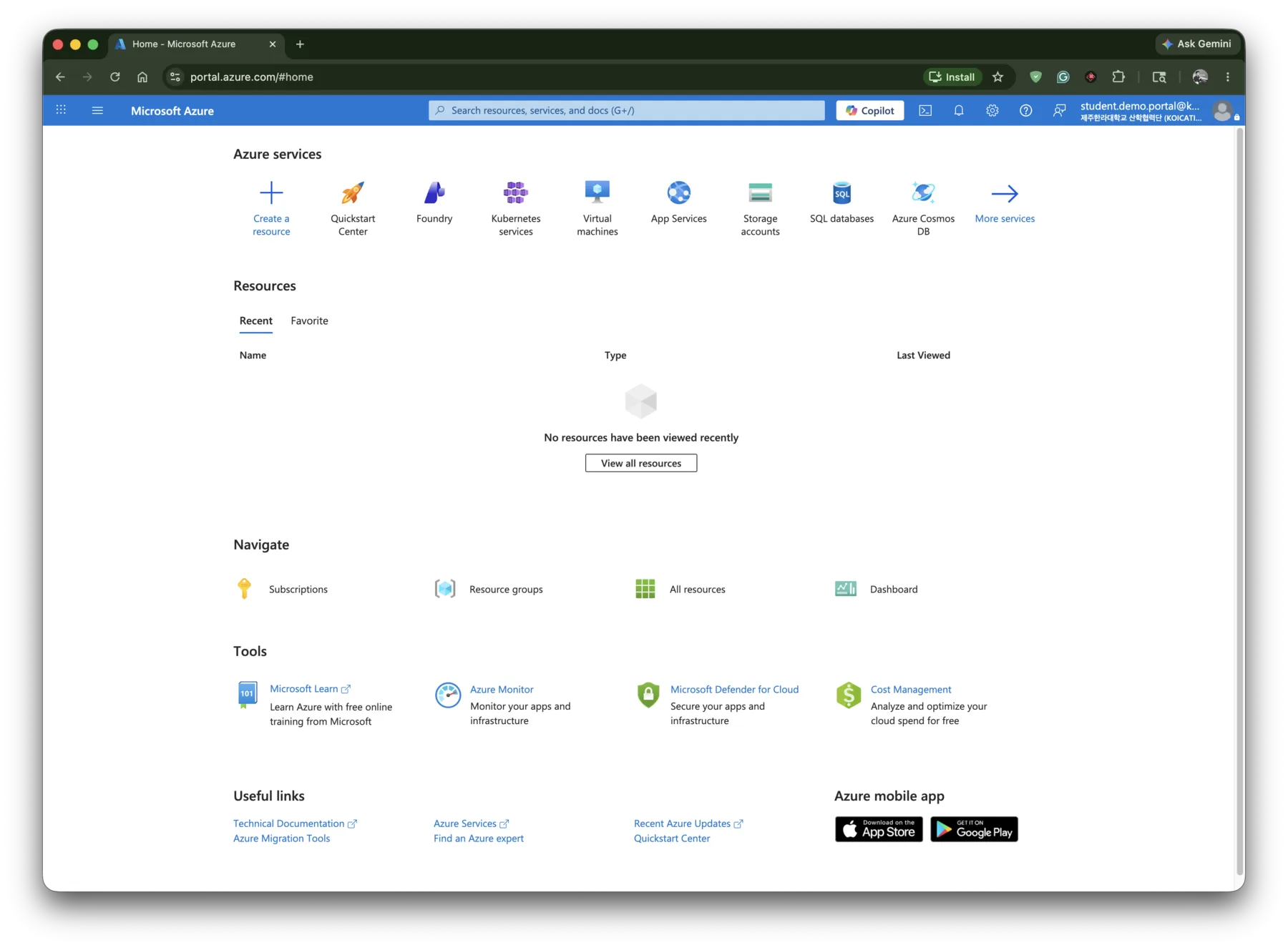
What this screen means
This is the first safe checkpoint after sign-in. Confirm that you are in Microsoft Azure, using the assigned KOICA-TIU account, and that the global search bar is available.
Look for
Student action
Use search instead of guessing through menus. Start by searching Resource groups, then open only the assigned hackathon resource group.
Watch out
Do not click Create a resource during the hackathon unless a tutor explicitly approves it. Portal is for verification and evidence, not unsupervised provisioning.
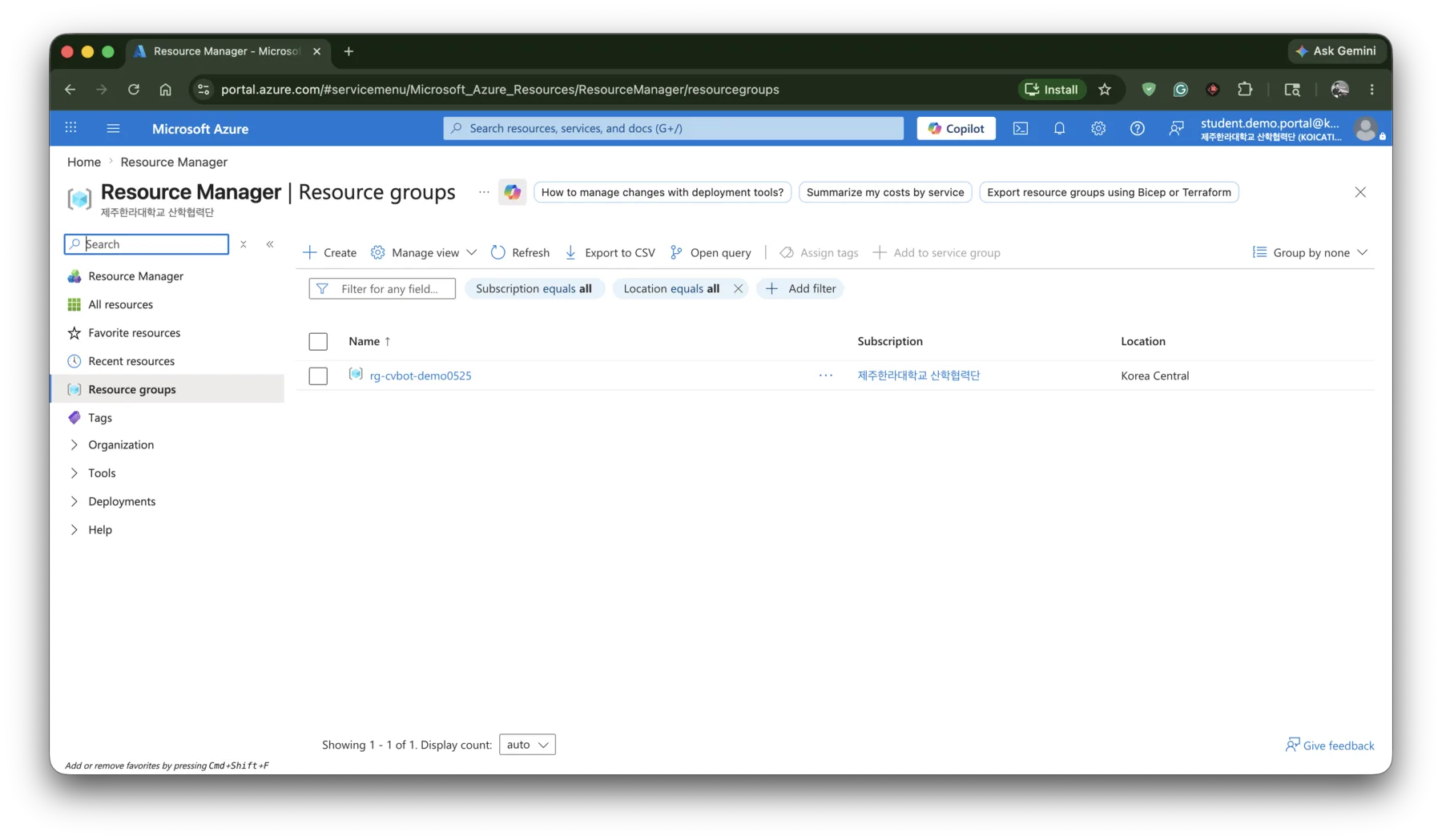
What this screen means
This screen shows what the student account can see at the resource-group level. A limited list is normal because hackathon access follows least privilege.
Look for
Student action
Open rg-cvbot-demo0525 and use it as the entry point for the demo stack. If your own team receives a different resource group, open that assigned group instead.
Watch out
If no resource group appears, do not create one. Sign out and back in with the assigned account, then ask a tutor to check RBAC assignment if it is still missing.
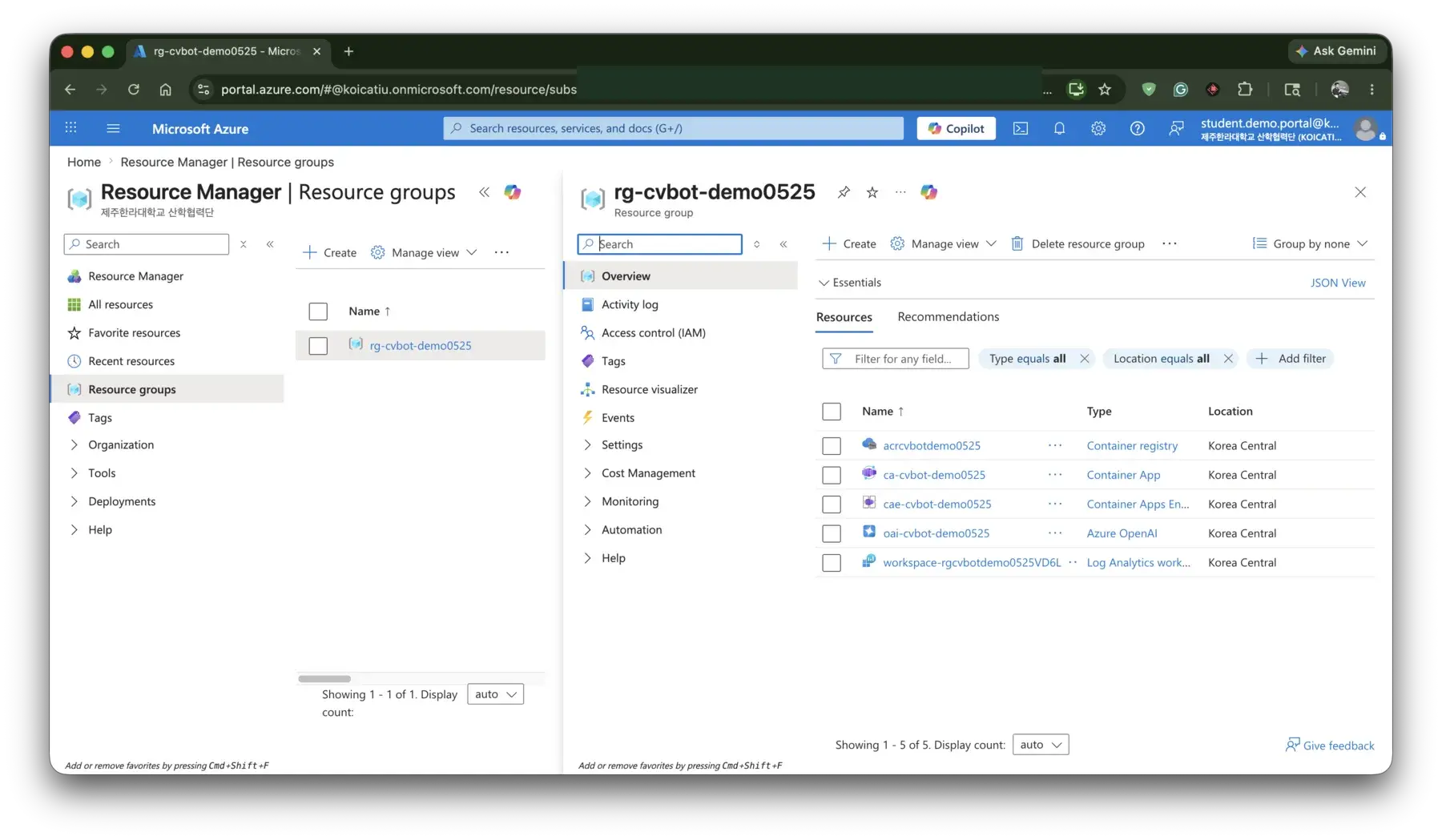
What this screen means
The resource group is the map of the deployed application. It lets judges and tutors see that the demo is not only a local notebook or static mockup.
Look for
Student action
Use this screen to explain your architecture in one sentence: model service, web app, container image, runtime environment, and logs all live in one controlled group.
Watch out
Do not delete, move, retag, or add resources from this view. Those actions affect the whole demo stack and can break the live presentation.
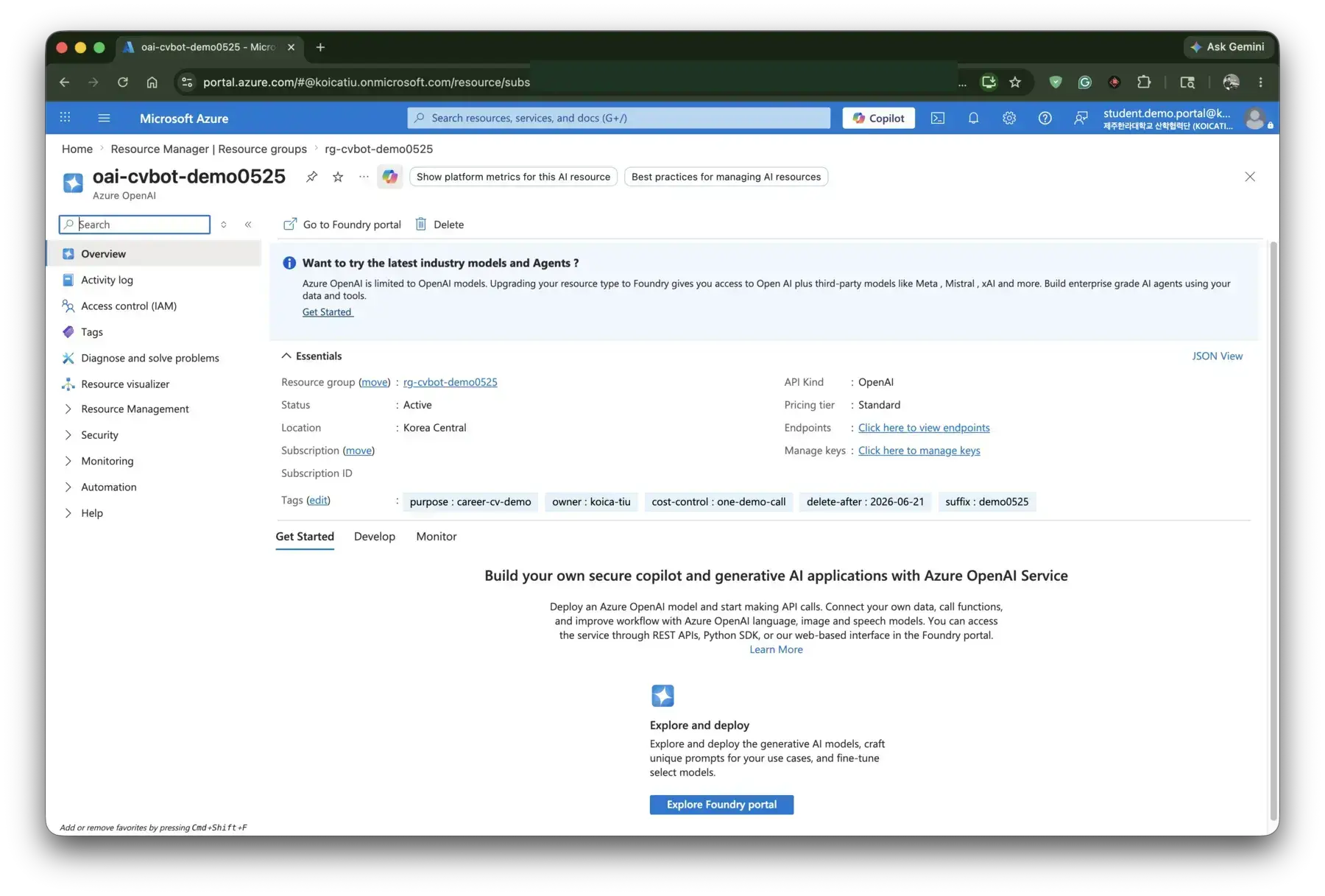
What this screen means
This screen proves which AI service powers the application. For the reference demo, the resource is active in Korea Central and belongs to the controlled hackathon resource group.
Look for
Student action
Use this screen to tell judges where the model call happens. For implementation details, your code should read endpoint, key, deployment, and API version from environment variables.
Watch out
Do not open Keys and Endpoint while sharing your screen. If a tutor needs to check a key, stop screen sharing first and handle it privately.
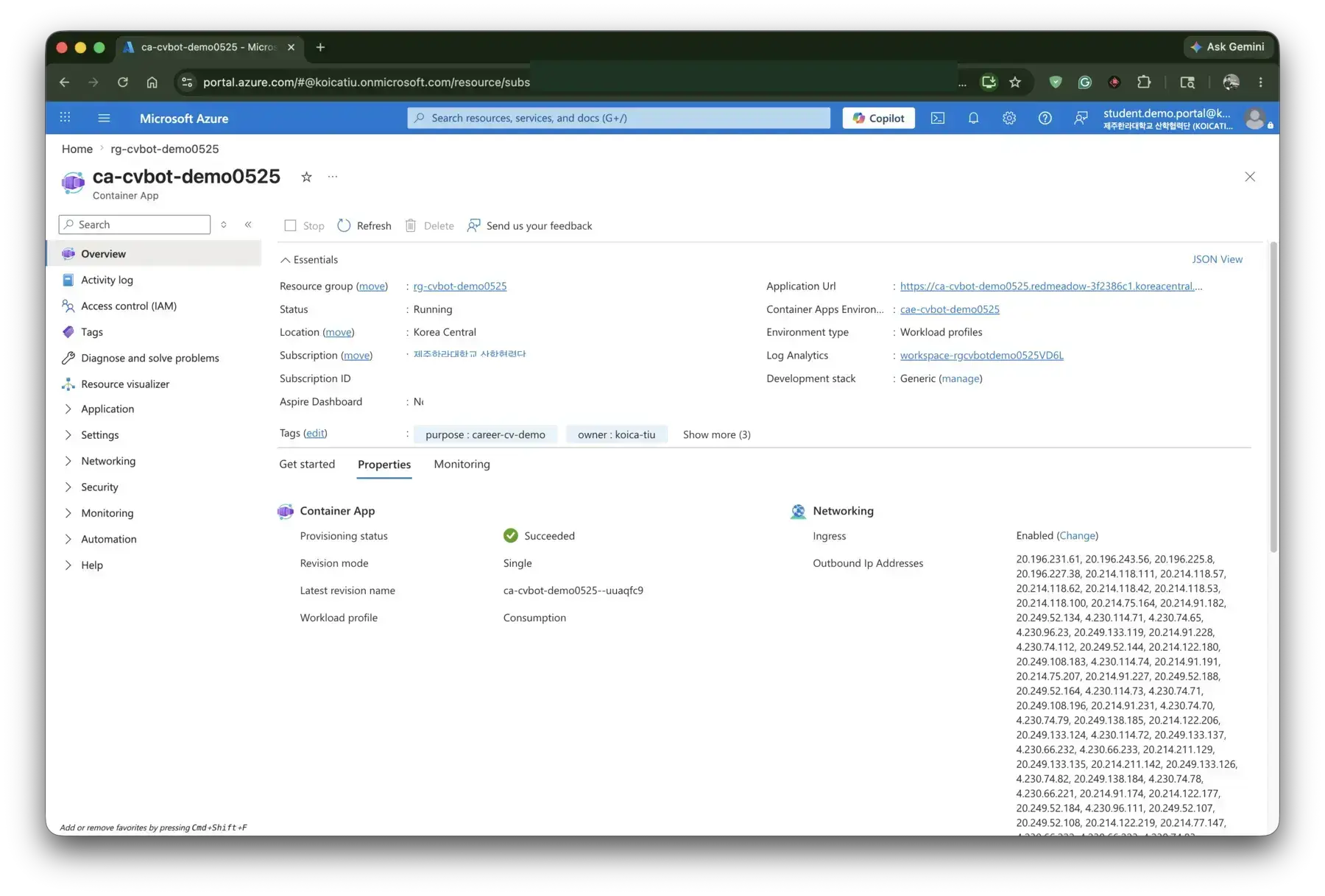
What this screen means
This is the deployed web application surface. It shows whether the app is running, where the public URL is, and which runtime environment hosts it.
Look for
Student action
Open the Application URL during rehearsal and save it in the final slide deck. Warm up the app with a simple health check shortly before presenting.
Watch out
Do not change revision, networking, secrets, image, or scale during demo freeze. A small configuration mistake can make the public URL fail.
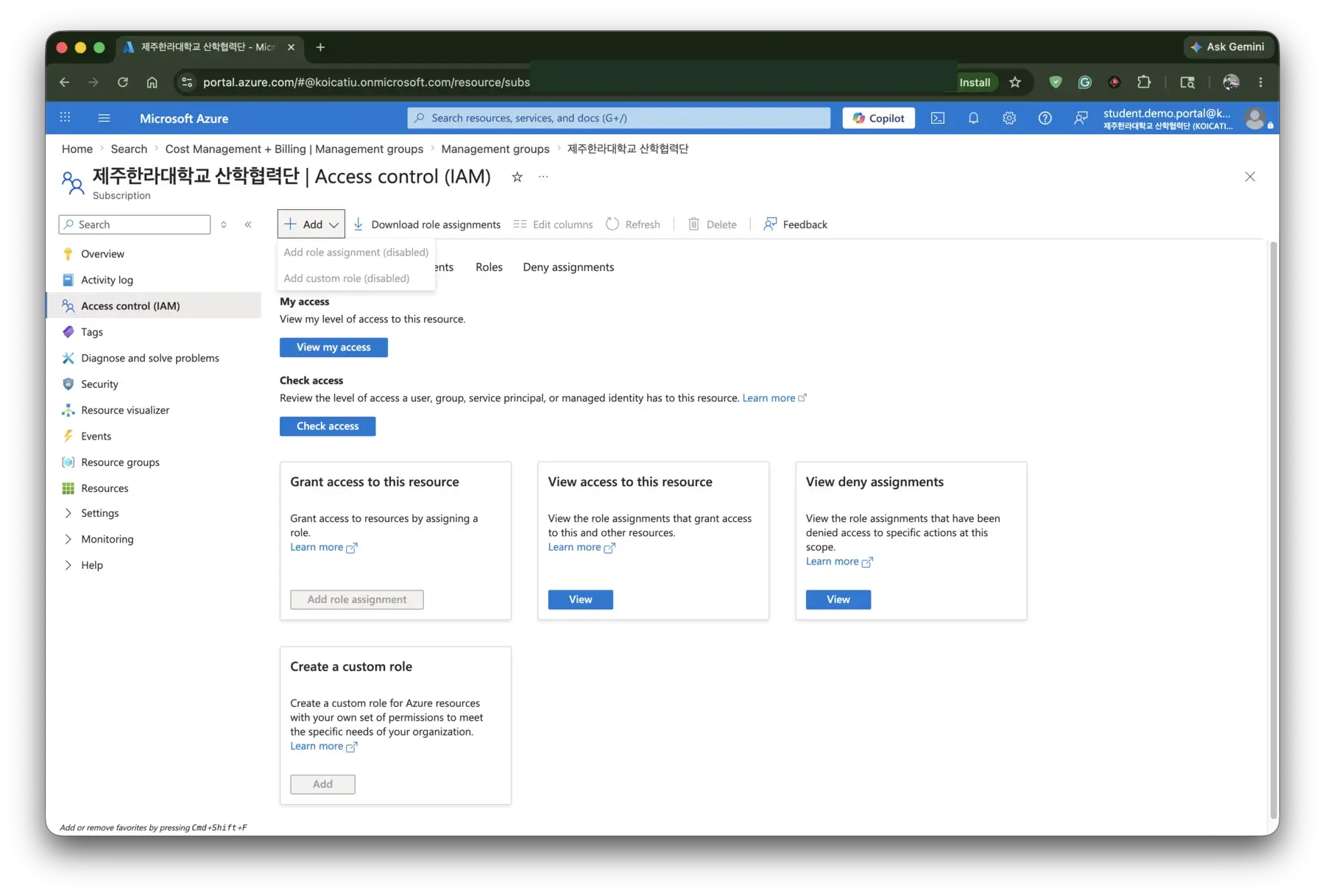
What this screen means
Disabled IAM controls are intentional. The student account can inspect assigned resources, but it should not grant access, create custom roles, or change subscription-level permissions.
Look for
Student action
Use this screen as proof that the hackathon environment is least-privilege. If a teammate cannot access a resource, ask a tutor instead of trying to assign roles yourself.
Watch out
Never try to bypass IAM restrictions by sharing accounts, passwords, API keys, or browser sessions. Access problems must go through tutors or operations.
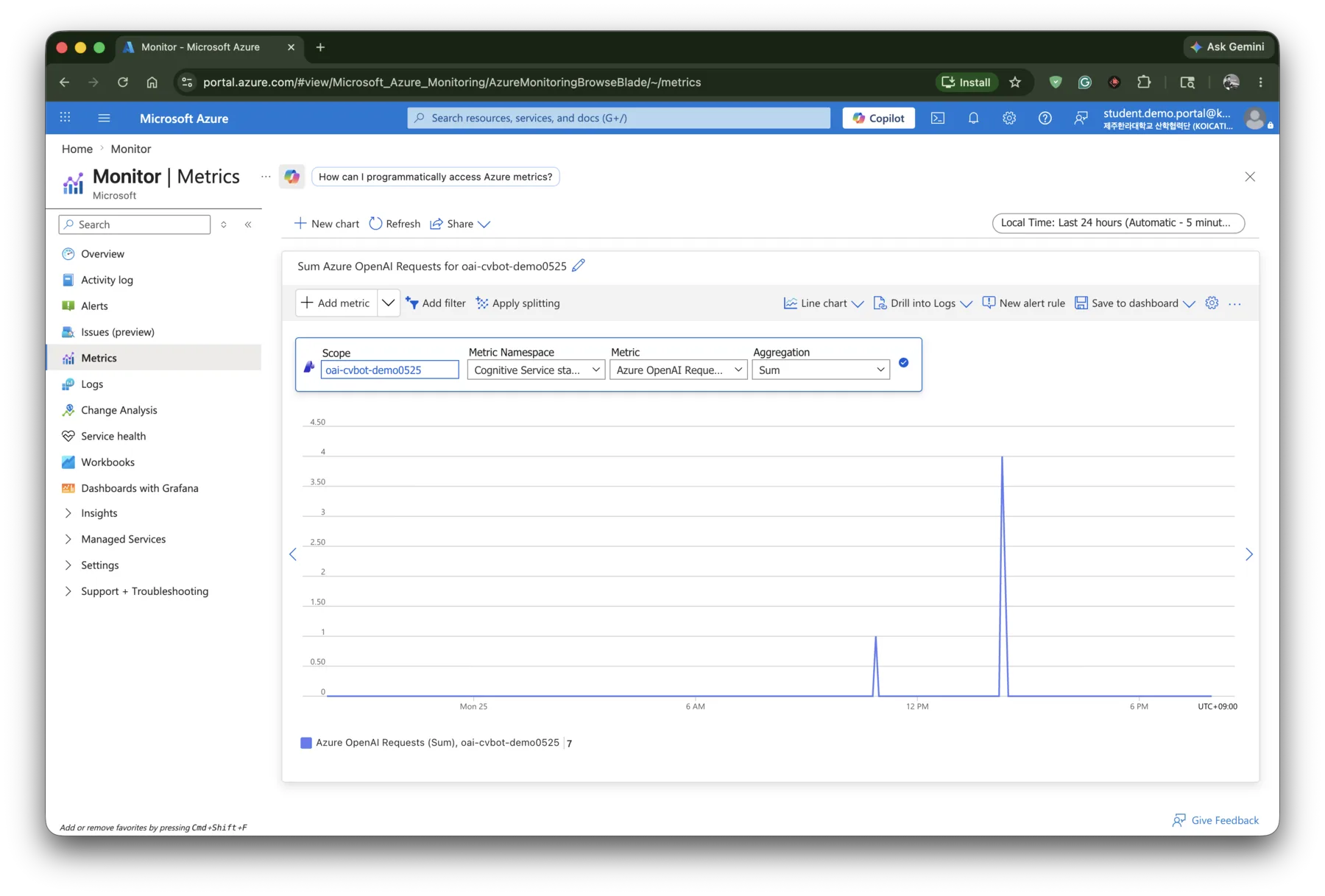
What this screen means
Metrics show whether the AI resource is actually being used. This example chart tracks Azure OpenAI Requests over the last 24 hours.
Look for
Student action
Use metrics to verify successful integration and detect accidental loops. For cost totals, use the KOICA-TIU live team cost page and tutor dashboard.
Watch out
Do not create new alert rules or dashboards during the event. Monitoring is for diagnosis; cost control still comes from mock mode, short prompts, and tutor-approved live tests.
Open the Azure Portal and confirm the signed-in account.
Search for the assigned resource group and inspect resource names.
Check model deployment name, Container App URL, status, revisions, and scale setting.
Read logs or metrics for troubleshooting with tutor guidance.
Take redacted screenshots for the final slide deck.
Do not create new paid Azure resources without tutor approval.
Do not open or share keys, passwords, endpoints, tenant IDs, object IDs, or subscription IDs on a projector.
Do not change IAM roles, scale settings, secrets, container images, or delete settings during the event.
Do not upload private student, medical, financial, passport, or government data.
Do not run loops, crawlers, or repeated long prompts against live Azure.
Most Portal issues are account, RBAC, or secret-handling issues. Do not try random fixes during the event.
Use the assigned account. If MFA registration appears, complete it before the hackathon starts or ask operations for help.
RBAC may not have propagated yet, or the wrong account is signed in. Ask a tutor to check the assignment.
Close it before sharing your screen. Put secrets only in .env or platform environment variables.
Open /health one minute before the demo. Cold starts are normal with scale-to-zero.
Use the live team cost page and ask the tutor before adding another paid service.
Use Microsoft Learn for official Portal and RBAC behavior. Use the KOICA-TIU pages for event-specific limits.
Start with the sample template and mock mode, then use Azure Portal to confirm the deployed resources and cost controls.